DocsFor organizations
Reference images
Add photos or short videos of each location so visitors can be positioned from their camera, and read the readiness and status labels.
On this page
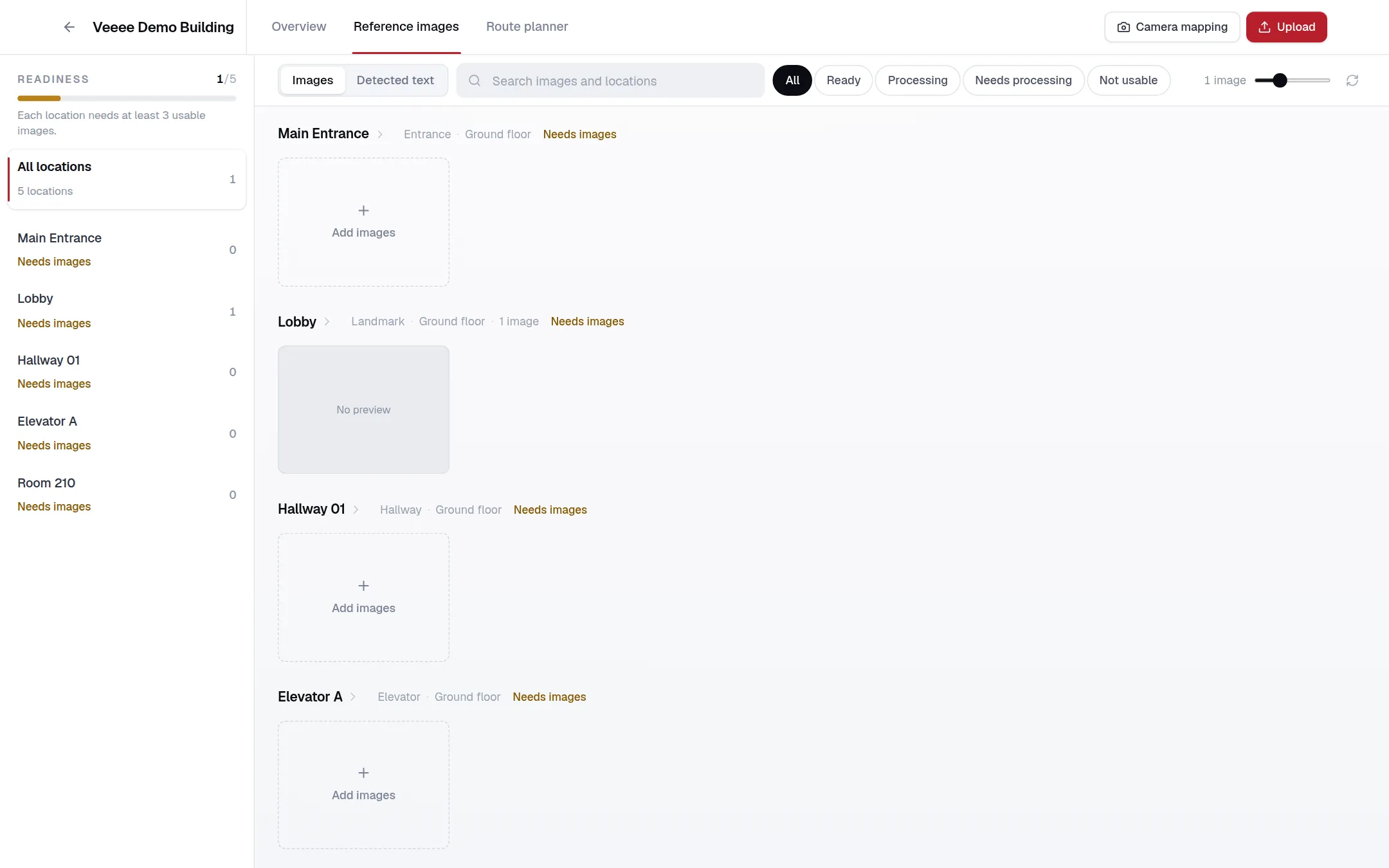
Reference images are what let a visitor’s camera find them. Each location needs enough usable images before the map can recognise visitors standing there. The Reference images tab shows every location with its images, a readiness rail with how many locations are ready, and the minimum images per location, which is three unless the server says otherwise.
Add reference media
Choose Upload, pick the location, then Photos or Video.
- Photos: JPEG, PNG or WebP, up to 50 at a time.
- Video: MP4, MOV or WebM, up to 60 seconds and 150 MB. Veeee extracts frames, keeps the usable ones and builds references from them. Record video opens the camera in the browser and stops automatically after 15 seconds.
- Camera mapping on the tab, and Map building on the Overview, capture reference media for each location during a walk. See Locations and connections.
Files upload directly to Veeee’s storage and are then processed. The dialog shows Uploading to storage and Handing off to processing…; processing continues in the background and the grid updates as images become ready.
What to capture
- Stand where a visitor would stand and photograph what they would see: the door, the sign, the counter, the corridor ahead.
- Cover a few angles of each location. Three usable images is the minimum; more angles make recognition more reliable.
- Prefer permanent features. Avoid people, screens, posters that change and seasonal decoration.
- Shoot in the lighting visitors will have. Add images for the evening if a space looks very different then.
- Hold the phone steady and upright. Blurred or very dark frames are rejected as not usable.
Status labels
| Label | Meaning |
|---|---|
| Ready | The image was processed and is used for recognition. For a location: visitors can be positioned here from their camera. |
| Processing | Uploaded and queued or being processed. |
| Needs processing | Processing failed. Use Reprocess or Retry failed processing. |
| Not usable | The image was rejected (for example blurred or too dark) and is not used. |
| Needs images | The location has fewer usable images than the minimum. |
Managing images
Select images to delete them in bulk, delete a whole upload, or run Run OCR on an image to detect printed text such as room numbers and signs. Detected text appears in the Detected text view, where owners and administrators approve or reject it and turn it into points of interest. Detection never publishes a destination automatically. See Points of interest.