DocsFor organizations
Creating an organization
Register your organization and its first owner account, or continue with Google, then understand the Owner, Admin and Staff roles.
On this page
Every indoor map belongs to an organization. Registration creates the organization and its first owner in one step. Open Get started, keep Create account selected and continue as an organization.
Register with an email and password
The registration form has three parts.
- Organization details: the organization name (2 to 120 characters) and a business email are required. Legal name, phone number, website and industry are optional. A website must start with
http://orhttps://. - Organization location: the country is required; address, city, region and postal code are optional.
- Owner account: the owner’s first and last name, email and a password of 12 to 128 characters with at least one letter and one number. This person becomes the first organization owner.
After Create organization you land in the workspace, signed in. There is no separate email confirmation step before you can start mapping.
Continue with Google
When Google sign-in is enabled, Continue with Google appears on the registration and sign-in pages. A Google account that is not yet connected to an organization is taken to Complete your organization, where the same organization details are filled in once. Veeee has no standalone personal accounts: a Google account always belongs to an organization.
Roles
| Role | What it can do |
|---|---|
| Owner | Everything, including billing, the organization profile, events, points of interest and importing generated maps. |
| Admin | The same as an owner for day-to-day work: maps, billing, events, points of interest, organization profile. |
| Staff | Create and edit indoor maps, locations, connections and reference images; map buildings; plan routes; publish. Staff cannot change the subscription, add or edit events, or approve detected text and points of interest. |
Signing in and keeping the account secure
- Sign in at /login/organization with your email and password, or with Google. Forgot password? sends a reset link if an account uses that address.
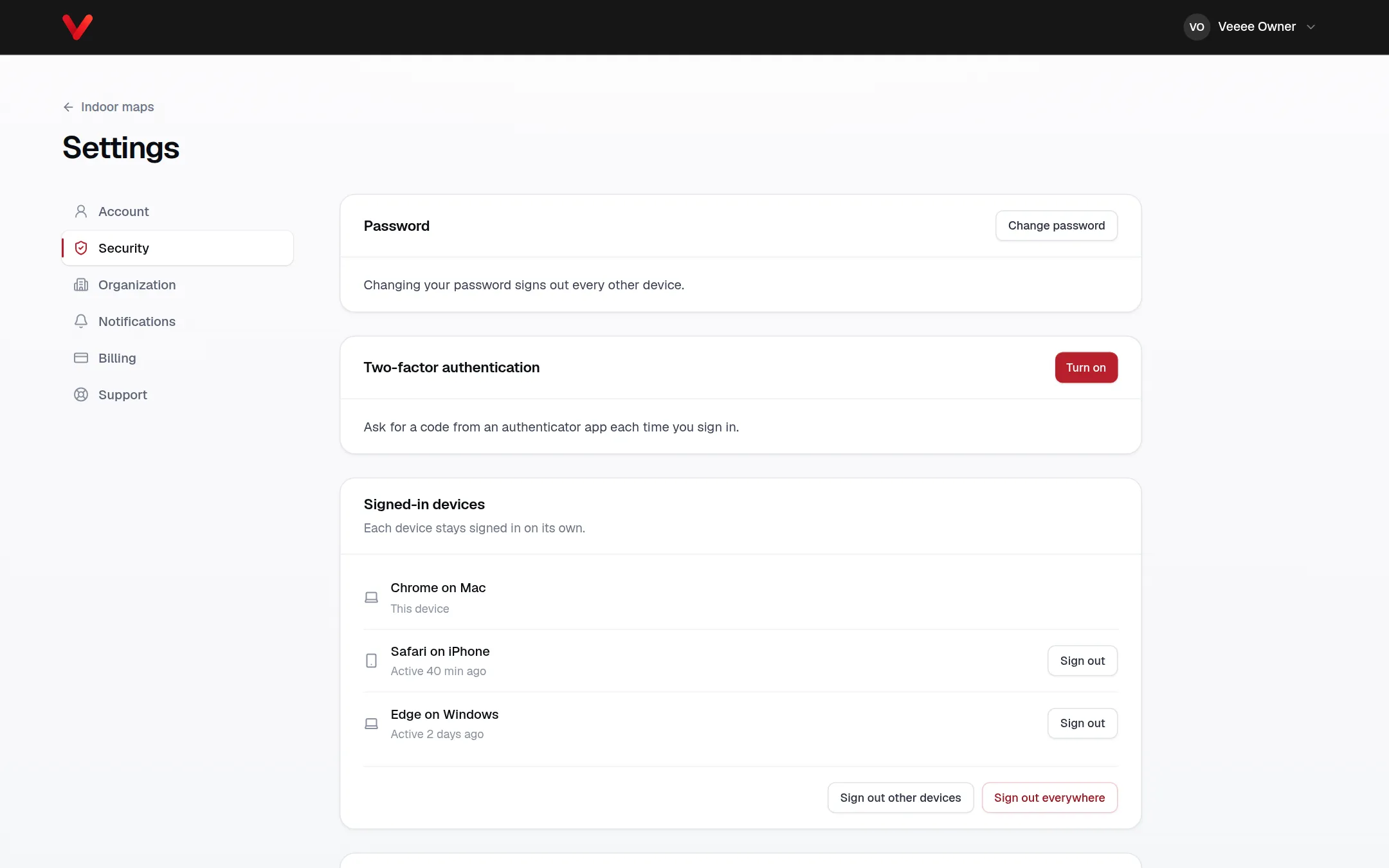
- Two-factor authentication can be turned on in Settings › Security with any authenticator app. Save the recovery codes it gives you; they are the only way back in if the app is lost.
- Settings › Security lists every signed-in device. You can sign out one device, all other devices, or everywhere. Changing your password signs out every other device.
- A session that expires while you work shows “Your sign-in needs to be renewed. Work on this page is kept.” Signing in again in the new tab lets you continue where you were.