DocsNavigation
Finding a destination
How a visitor opens a building, names where they want to go, answers a clarification question and starts navigation.
On this page
Navigation starts from a link the organization shares: a QR code at the entrance, a link on its website, or the embedded widget. The page opens in the phone’s browser at /navigate/{organization}/{building}. There is nothing to install and no account to create.
Ask for a place
The first screen asks Where would you like to go? Type a room, a service or a landmark, or tap one of the suggested places. Up to four suggestions are offered, entrances and landmarks first.
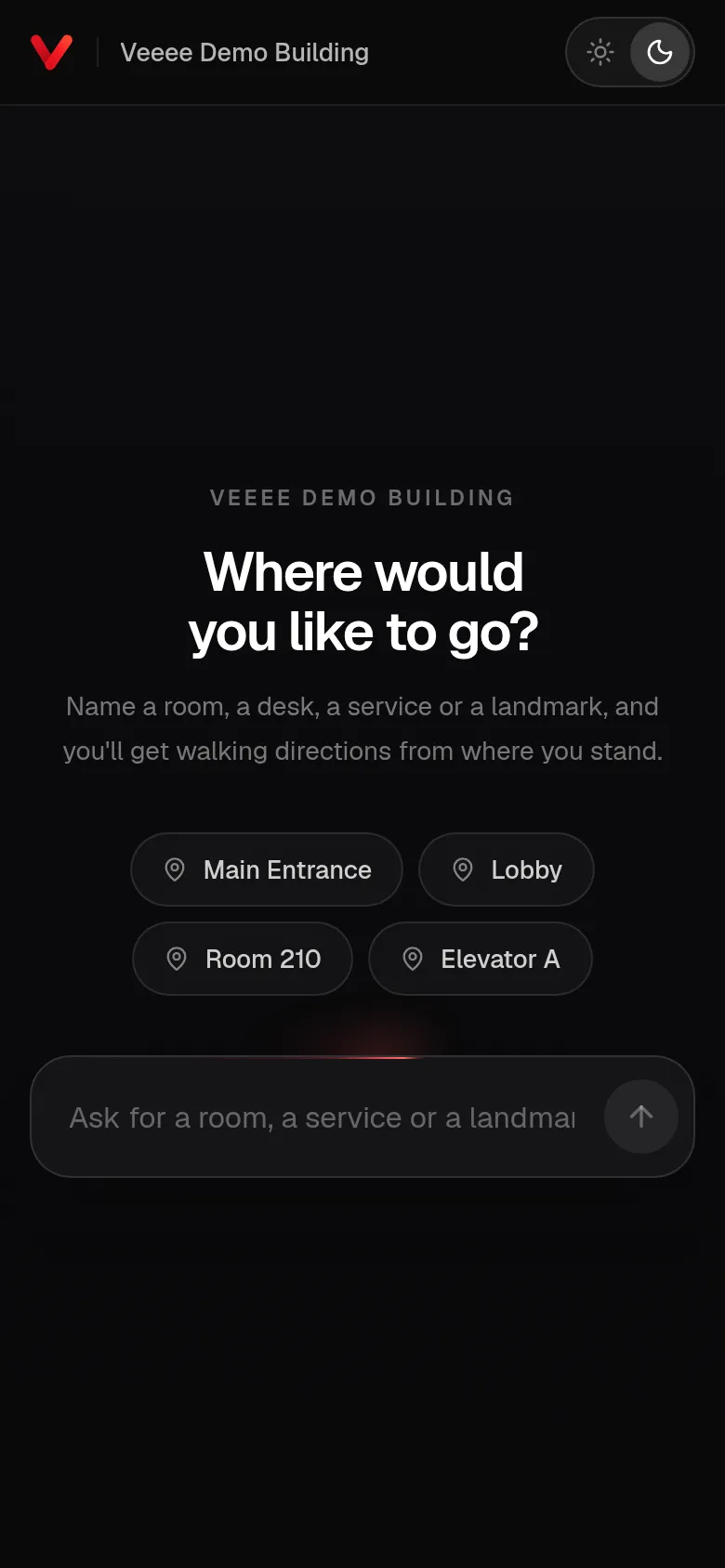
Veeee matches the request against the building’s locations and points of interest, including the aliases and keywords the organization added. Three things can happen.
| Outcome | What the visitor sees |
|---|---|
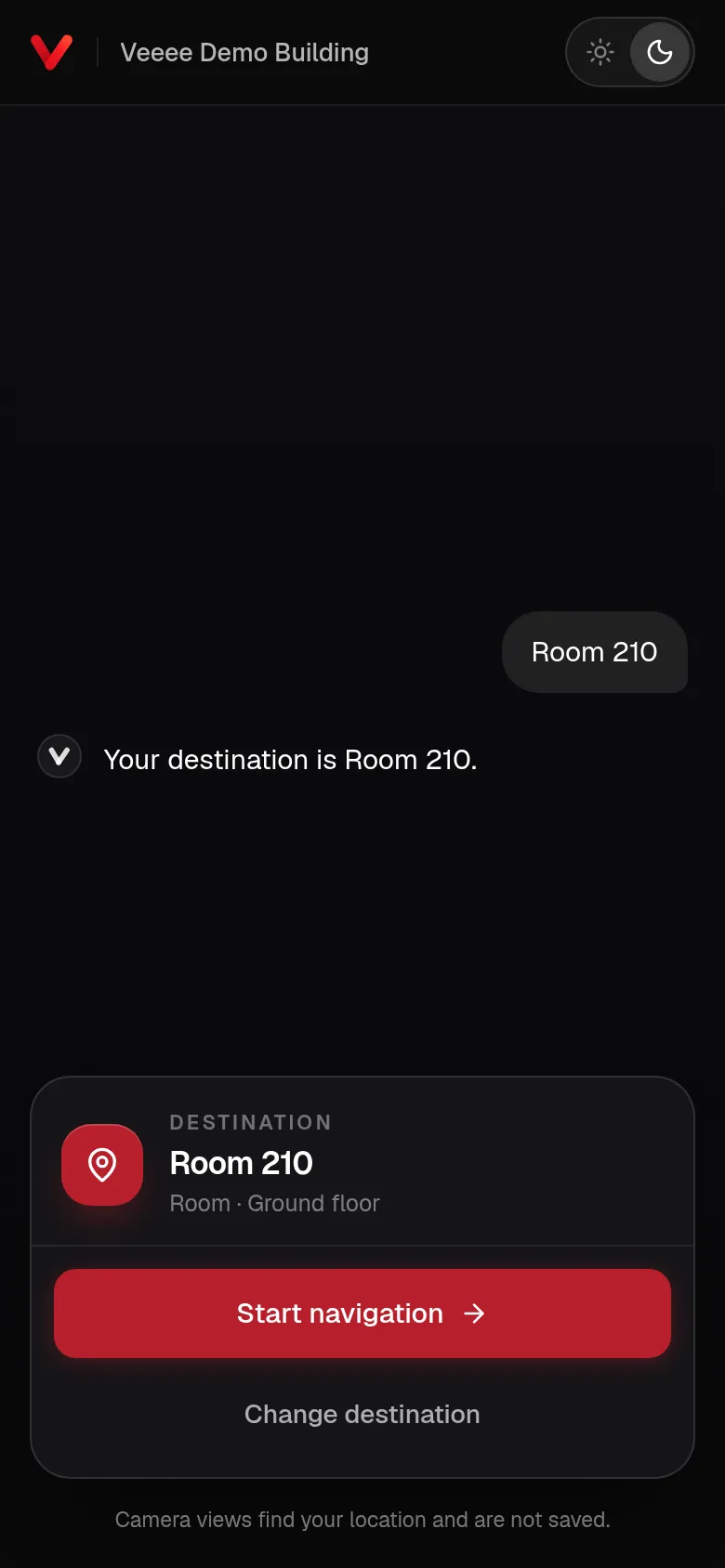
| A match | “Your destination is {name}.” followed by the destination card. |
| Several possible matches | “I found a few places that could match. Which one?” with a short list under Did you mean, plus None of these. |
| No match | “I couldn’t match that to a mapped place. Try the room name, or describe what you’re looking for.” |
The destination card
The card shows the destination’s name, its type and its floor (“Ground floor”, “Floor 2”, “Lower floor 1”). Start navigation opens the camera to find where the visitor stands. Change destination returns to the conversation. Beneath the buttons the page states that camera views find your location and are not saved.
Starting from a location QR code
A location QR code opens the building with a start point (?start={location}). The page shows Starting at {name} and skips the first camera check when navigation starts. The camera is still used while walking to keep track of the position. If the start point is unknown, the page says so and falls back to the camera.
On an organization’s website
The embedded widget shows the same conversation inside the organization’s page. Once a destination is chosen, Start navigation opens the full navigation page in a new tab, because browsers restrict camera access inside embedded frames.
Light and dark
The visitor page follows the phone’s light or dark setting and has a toggle in the top-right corner. The choice is remembered on the device.