DocsFor organizations
Creating and opening an indoor map
One indoor map per building: create it from the Indoor maps dashboard, understand its status and access level, and find your way around the workspace.
On this page
The Indoor maps dashboard lists every building your organization has mapped. Filter it by All, Published or Drafts, search by name, and sort by recently updated, newest or published first.
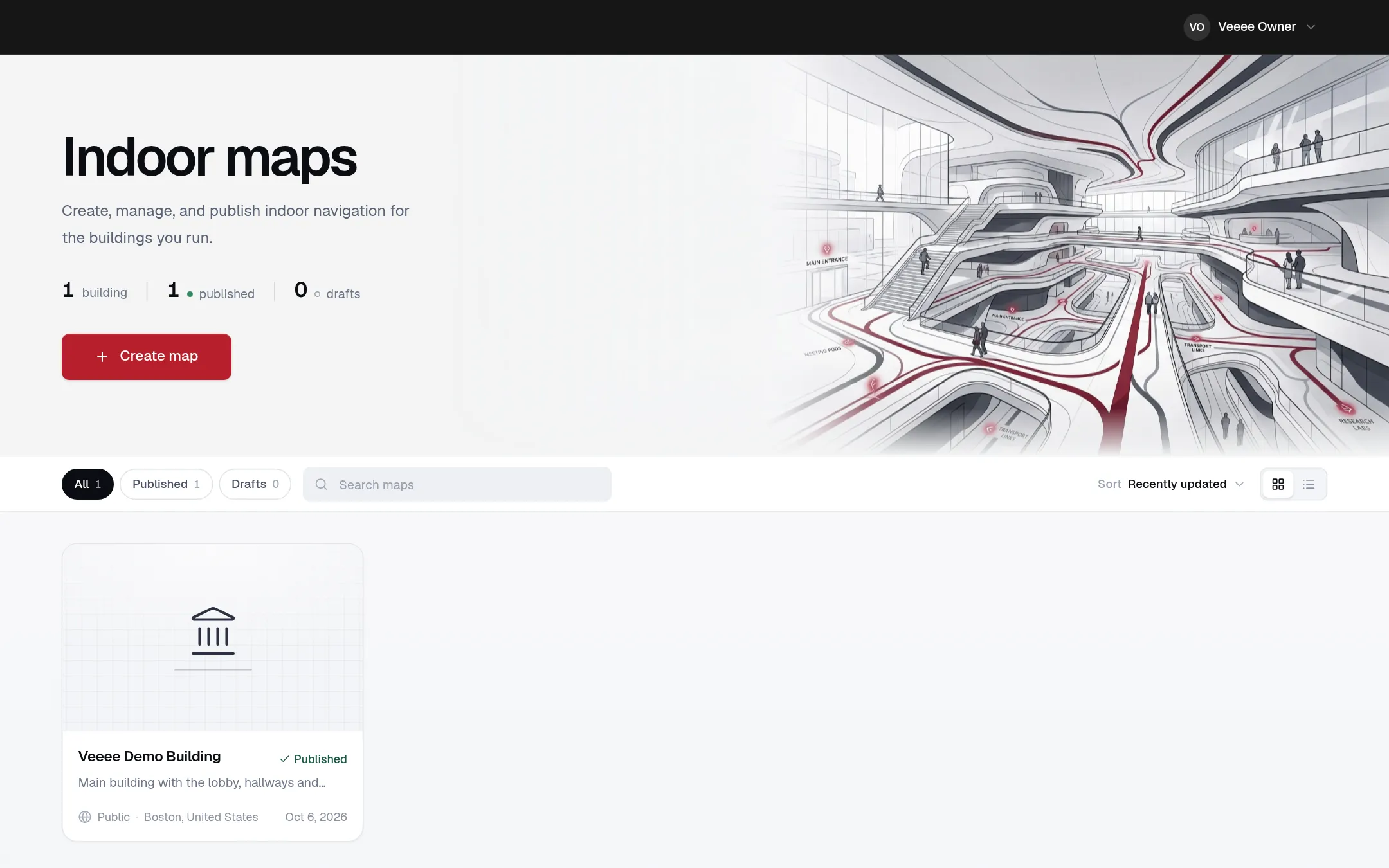
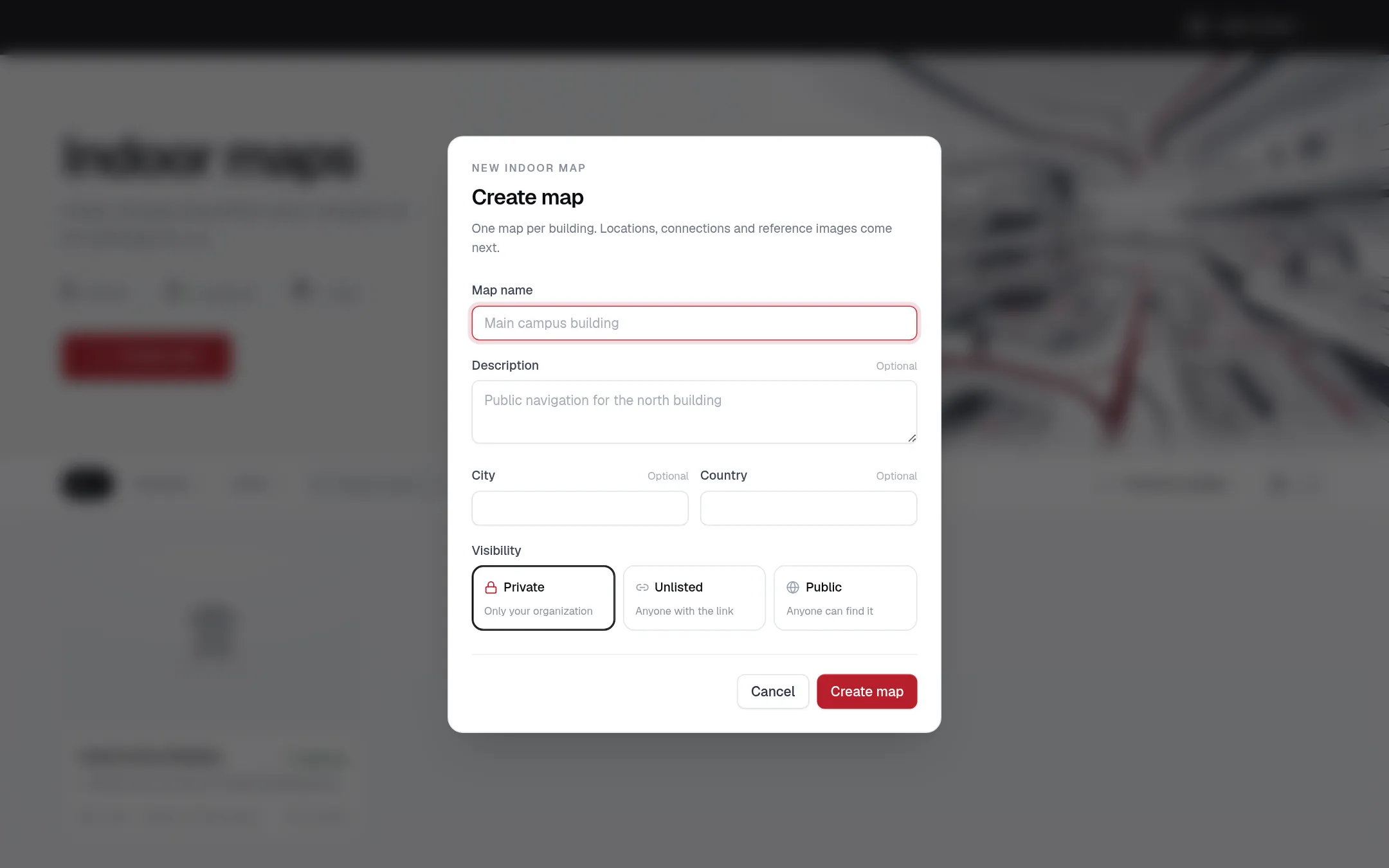
Create a map
Choose Create map. One map covers one building. Only the map name is required; the description, city and country are optional and help visitors recognise the building. Visibility starts as Private and can be changed at any time until the map is archived. The new map opens straight away.
The map workspace
A map has three tabs. Overview holds the setup checklist, the plan with its locations and connections, and the editor. Reference images manages the photos and video for each location and the text detected in them. Route planner tests routes between any two locations with accessibility options.
The toolbar on the Overview offers Map building (the walk-and-map flow on a phone), Events, Visitor access, Preview, Open navigation once the map is live, and Publish while it is a draft. More actions holds Take product tour, Import generated map, Unpublish and Delete indoor map.
Status and access level
| Status | Meaning |
|---|---|
| Draft | Only your organization can see the map. Visitor links do not work yet. |
| Published | The map is live for visitors, subject to its access level. |
| Archived | Kept for reference. Its access level can no longer be changed and it cannot be edited. |
| Access level | Who can navigate |
|---|---|
| Private | Only people in your organization can open this map. |
| Unlisted | Anyone with the link can navigate, but the map is not listed publicly. |
| Public | Anyone can find and navigate this map. |
Deleting a map
Delete indoor map in More actions removes the map permanently, together with its locations, connections, reference images and publication data. This cannot be undone, so the dialog asks you to confirm with Permanently delete map.